
Why This Page Exists
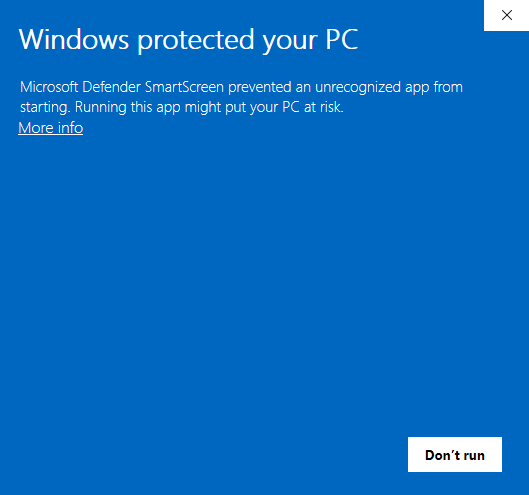
mtc-skopos.exe is digitally signed with a DigiCert Extended Validation (EV) code-signing certificate issued to Meylan Technologies & Consulting Sàrl. Despite the valid signature, some users see the blue "Windows protected your PC" SmartScreen prompt on first launch (shown above), particularly on managed corporate laptops.
This page gives end-users a one-time bypass and gives enterprise IT the information they need to allow-list the application cleanly, by publisher, for all current and future releases.
Why SmartScreen May Still Warn on a Signed Binary
SmartScreen reputation is tied to publisher identity + per-binary hash. EV signing is designed to grant immediate reputation, but for low-volume B2B publishers (niche SAP GRC tooling falls in this category) with fast release cycle (we do release multiple version per months), there is a cold-start period for each new release hash even though the publisher identity is unchanged.
SmartScreen behavior is inconsistent by design: a given release may run without warning on one Windows 11 laptop and be held on another depending on group policy, tenant configuration, and reputation propagation.
This is not a Microsoft Defender threat detection. Defender does not flag mtc-skopos.exe.
Signature Verification Facts
Enterprise security teams can verify the binary before allow-listing:
| Field | Value |
|---|---|
| Publisher | Meylan Technologies & Consulting Sàrl |
| Country | Switzerland (Geneva) |
| Certificate authority | DigiCert |
| Certificate type | Extended Validation (EV) Code Signing |
| Certificate policy OID | 2.23.140.1.3 |
| Certificate SHA-1 thumbprint | 740DD5A5BE29973F69958A6F6B9D574EF62E99B8 |
| Certificate expiry | 10 June 2027 |
| Signature digest | SHA-256 with RFC 3161 timestamp |
Verify the signature on any downloaded copy:
Get-AuthenticodeSignature "mtc-skopos.exe" | Format-List *
Or with signtool from the Windows SDK:
signtool verify /pa /v /all mtc-skopos.exe
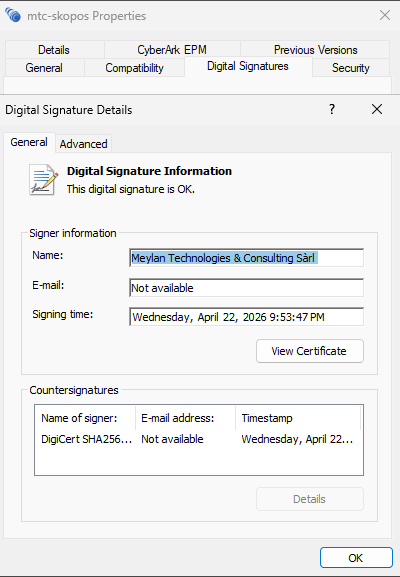
A valid result shows SignerCertificate.Subject starting with CN=Meylan Technologies & Consulting Sàrl and Status: Valid.
End-User One-Time Bypass
If you are running Skopos on your own machine and SmartScreen blocks it:
- Right-click
mtc-skopos.exe→ Properties - Check the Digital Signatures tab and confirm the signer is Meylan Technologies & Consulting Sàrl
- On the General tab, if an Unblock checkbox is shown, check it and click OK
- Launch the application. If SmartScreen still appears, click More info → Run anyway
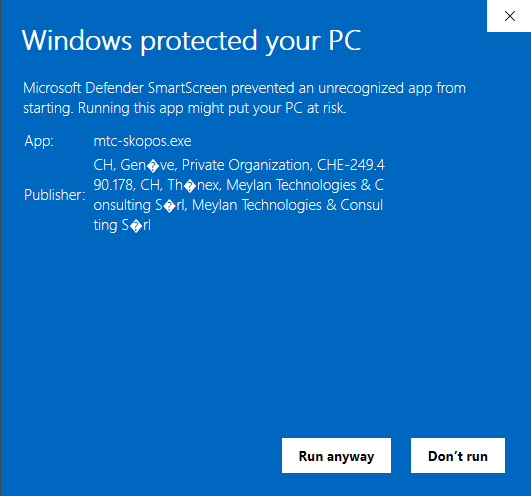
On managed corporate devices, the Run anyway option may be disabled by group policy. In that case, your IT team needs to allow-list the application using one of the enterprise methods below.
Enterprise Allow-Listing (for IT Support)
For corporate deployments, publisher-based allow-listing is the recommended approach. It removes the prompt for all users, survives future MTC Skopos releases automatically (the publisher identity is stable across releases), and can be audited and approved once rather than per-release.
Configuration 1: AppLocker publisher rule (Windows Enterprise / Education)
Note: If you are deploying Configuration 2 (WDAC), this option is not required - AppLocker is not enforced when WDAC is active on the same device.
- Open Local Security Policy → Application Control Policies → AppLocker → Executable Rules
- Create New Rule → Allow → Publisher
- Point to a signed copy of
mtc-skopos.exeas the reference file - Move the slider up to Publisher level to allow all binaries signed by Meylan Technologies & Consulting Sàrl (wildcards product/version, so future releases are covered)
- Deploy the policy via Group Policy Object to the target collection
Configuration 2: Windows Defender Application Control (WDAC)
For Windows 11 Enterprise and Server 2022+, build a signer rule directly from the publisher certificate. This is independent of any specific mtc-skopos.exe binary; the rule matches any executable signed by Meylan Technologies & Consulting Sàrl.
Note: If your organisation already has an active WDAC policy deployed, merge this rule into your existing policy rather than deploying a new one. If AppLocker rules are also in use, be aware that AppLocker is not enforced when WDAC is active on the same device - use this option instead.
Export the publisher certificate once (from any signed Skopos build, or from a .cer file we can provide on request):
$sig = Get-AuthenticodeSignature "mtc-skopos.exe"
Export-Certificate -Cert $sig.SignerCertificate -FilePath ".\MTCSkopos-Publisher.cer"

# Sanity check: thumbprint must equal the published value
$sig.SignerCertificate.Thumbprint
# Expected: 740DD5A5BE29973F69958A6F6B9D574EF62E99B8
Create the WDAC policy from the certificate, then compile and deploy (Microsoft reference: ConfigCI cmdlets):
New-CIPolicy -FilePath ".\MTCSkopos-WDAC.xml" -UserPEs -Level None -NoShadowCopy
Add-SignerRule -FilePath ".\MTCSkopos-WDAC.xml" -CertificatePath ".\MTCSkopos-Publisher.cer" -User -Update
ConvertFrom-CIPolicy ".\MTCSkopos-WDAC.xml" ".\MTCSkopos-WDAC.bin"
Why
-Update? Microsoft requires at least one<UpdatePolicySigner>rule in the policy XML beforeConvertFrom-CIPolicycan compile it. The-Updateflag onAdd-SignerRulecreates this rule automatically. Omitting it will cause the compile step to fail. See Use signed policies to protect App Control against tampering.
Deploy the compiled .bin file via Group Policy or MDM (Microsoft reference: Deploy App Control policies). The rule is certificate-bound (equivalent to thumbprint 740DD5A5BE29973F69958A6F6B9D574EF62E99B8), so future Skopos releases signed by the same certificate are automatically covered until the certificate expires on 10 June 2027.
Configuration 3: Intune / SCCM managed deployment
Applications installed by SCCM or Intune under the SYSTEM context do not trigger SmartScreen prompts for end-users. Packaging mtc-skopos.exe as a Win32 app (.intunewin) or standard SCCM application is the simplest path for fleet deployment and bypasses the SmartScreen cold-start problem entirely.
Best practice: Per-Release Verification Workflow
IT teams deploying each new MTC Skopos release should:
- Download the new release from the URL provided by our team
- Download the associated
.sha256file, e.g: if downloaded file ismtc-skopos-1.6.0-windows.zipthe sha256 file ismtc-skopos-1.6.0-windows.zip.sha256 - Verify the checksum of downloaded file: using powershell
Get-FileHash .\mtc-skopos-1.6.0-windows.zipMUST match the hash present in the.sha256file - Run
Get-AppLockerFileInformation mtc-skopos.exeand confirm the signer starts with O=MEYLAN TECHNOLOGIES & CONSULTING SÀRL - Run
Get-AuthenticodeSignature mtc-skopos.exeand confirm the certificate thumbprint matches740DD5A5BE29973F69958A6F6B9D574EF62E99B8(until the certificate is rotated before its 10 June 2027 expiry) - If a publisher-based rule is in place (AppLocker, WDAC, EDR), no further action is required; deploy as usual
- If a hash-based rule is in place, record the new binary SHA-256 and update the rule
Risk Profile Summary
For security review boards reviewing MTC Skopos for enterprise use:
- Local desktop application; no outbound network calls in default configuration; except licence check
- No drivers, kernel-mode components, or privilege escalation
- Reads SAP authorization extracts provided manually by the user
- Optional AI features anonymize data before any external transmission and are opt-in
- No persistence beyond the install location
Need More Detail?
A full IT deployment guide covering AppLocker, WDAC, Intune, SCCM, and third-party EDR step-by-step is available on request for enterprise evaluations. Contact support@meylan-tc.com and mention the environment (Windows version, endpoint security stack, deployment tool) so we can send the relevant sections.