
A ruleset defines what counts as a risk. MTC Skopos ships with none, because the rules belong to your organization: the risks you care about, the severities you assign, and the systems they apply to. Loading one is a prerequisite for any analysis.
Rulesets load from CSV or from an XLSX workbook. If your risk library is maintained in Excel, which is usually the case, the XLSX path means you load the workbook directly rather than exporting a CSV every time it changes.
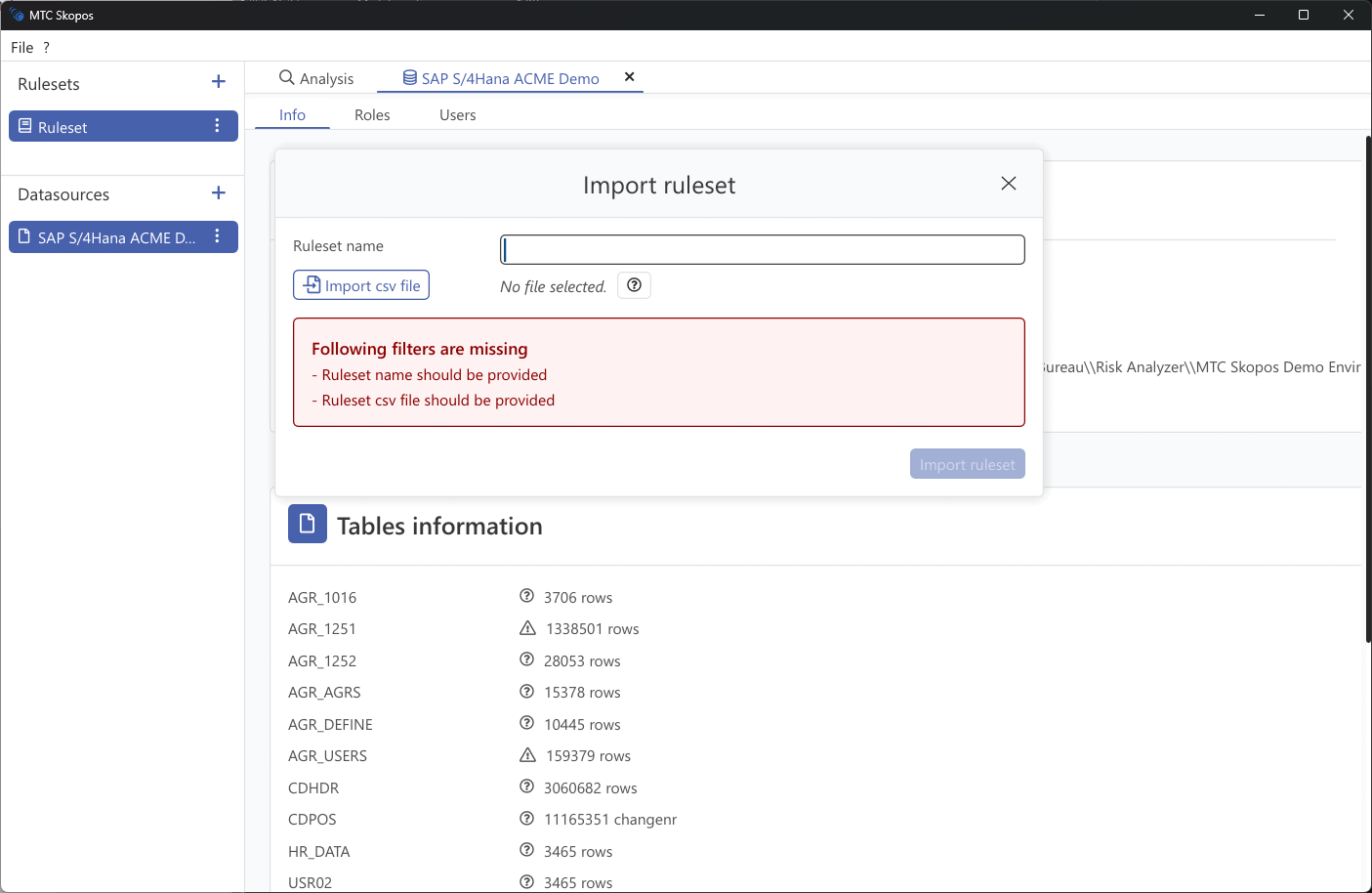
Steps
- Click Load Ruleset to open the Import ruleset dialog
- Enter a Ruleset name. This is the name shown when selecting a ruleset for an analysis, and it must be unique. Reusing an existing name is rejected with Rulesets with this name already exist
- Choose a Format, either CSV or XLSX
- For XLSX only, enter the Worksheet name holding the rules
- Click Import csv file or Import xlsx file and pick the file
- Click Import ruleset
The Import ruleset button stays disabled until everything required is present, and the dialog lists what is still missing. Switching format clears the selected file, so pick the format before the file.
Importing from XLSX
The worksheet name is typed, not picked from a list, and it is required. It must match the sheet name in the workbook exactly, or the import fails with worksheet '{name}' not found. Check the tab name in Excel and copy it across, including any spaces.
Everything else behaves as it does for CSV. The header row is the first non-empty row of the sheet, and the same ten required columns must be present. See Creating Custom Rulesets.
Two practical points:
- Only the named worksheet is read. A workbook holding a rules sheet alongside notes, pivot tables or a change log is fine, since the other sheets are ignored
- Only the modern
.xlsxformat is supported. Legacy.xlsand OpenDocument.odsare not, so save as.xlsxfirst
Delimiters, for CSV
There is no delimiter setting in the dialog. For CSV the delimiter is detected automatically by finding one under which all ten required headers appear, from semicolon, comma, tab, or pipe.
The file picker filters on the .csv extension, while the reader itself is delimiter-agnostic. A tab-delimited export saved as .csv therefore loads correctly. A file named .tsv simply will not appear in the filtered picker.
A file that refuses to load is almost always one with a renamed or misspelled header rather than a delimiter problem. The error names the headers it could not find.
Check it will fire
A ruleset that loads is not a ruleset that works. Two checks take a minute and save an afternoon:
The System values must match your data source names exactly. Matching is case-sensitive and literal. A ruleset saying PRDCLNT100 finds nothing against a data source you named PRD. This is the single most common reason a first analysis comes back empty.
The risk levels and types are whatever the file declares. Neither is a fixed list. The filter options offered in the analysis criteria are assembled from the distinct values found in the loaded ruleset, so if your file uses 1 through 5 for severity, those are your options. Two rulesets are only comparable on severity if they agree on the vocabulary.
Loading at startup
Rulesets configured in Settings load automatically when the application starts, which is the sensible arrangement for a ruleset you use routinely. Ad-hoc rulesets can be loaded manually per session.
Working with several rulesets
Several rulesets can be loaded at once, and you select one per analysis. Common reasons to keep more than one:
- A standard framework ruleset alongside a customer-specific one
- Separate rulesets per platform. An on-premise ruleset written against transaction codes and authorization objects cannot fire against an S/4HANA Public Cloud data source, which models access as IAM apps and restrictions, so those have to be separate files
- A stricter ruleset for a pre-go-live review and a routine one for periodic monitoring
Because the ruleset name must be unique, versioning it in the name is worth doing when you maintain several revisions, for example ITGC 2026 Q3.