
Test changes to role design itself, independent of who currently holds the role.
Steps
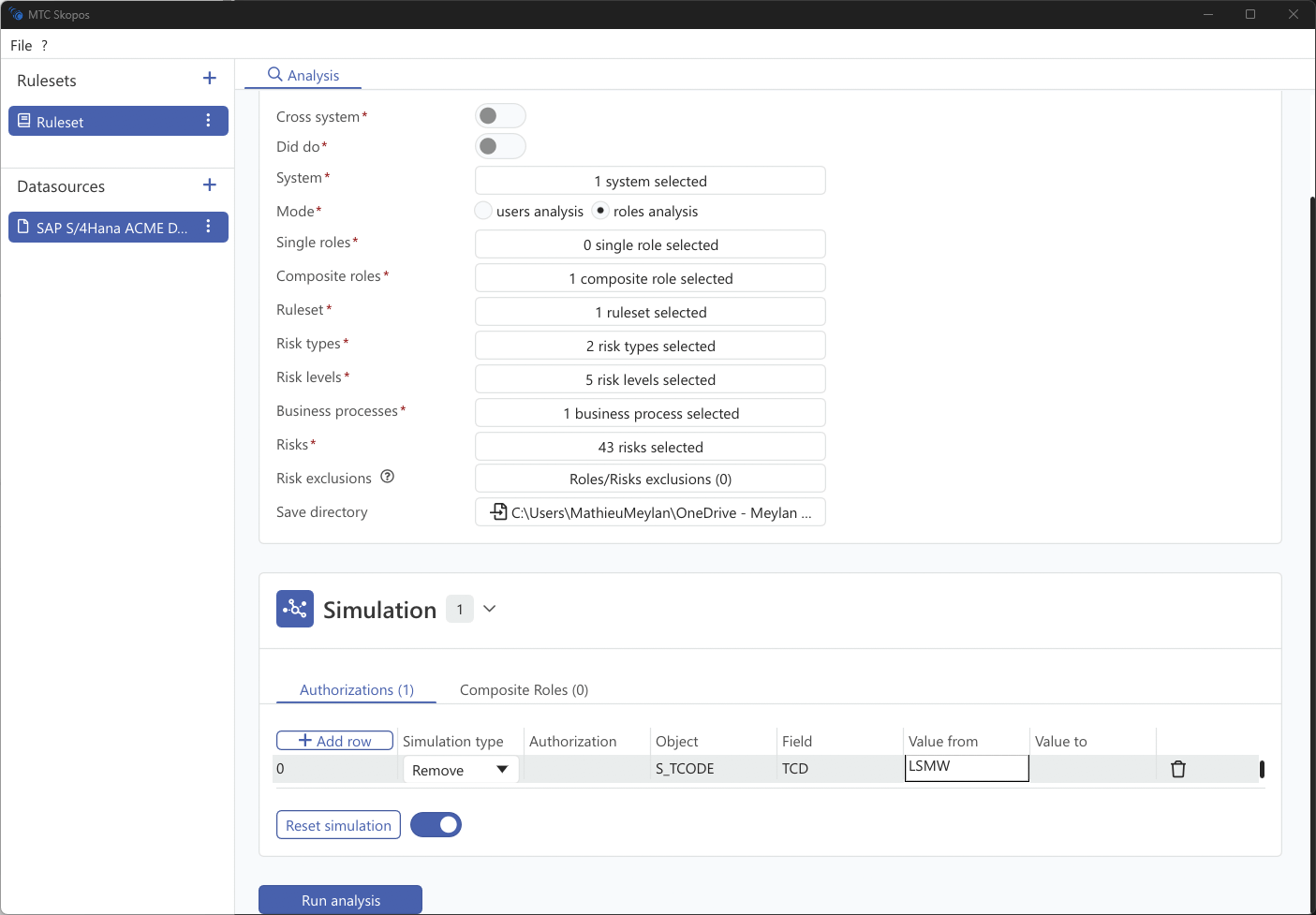
- In Analysis, select roles analysis mode
- Open the Simulation panel
- Build your scenario in the tabs below
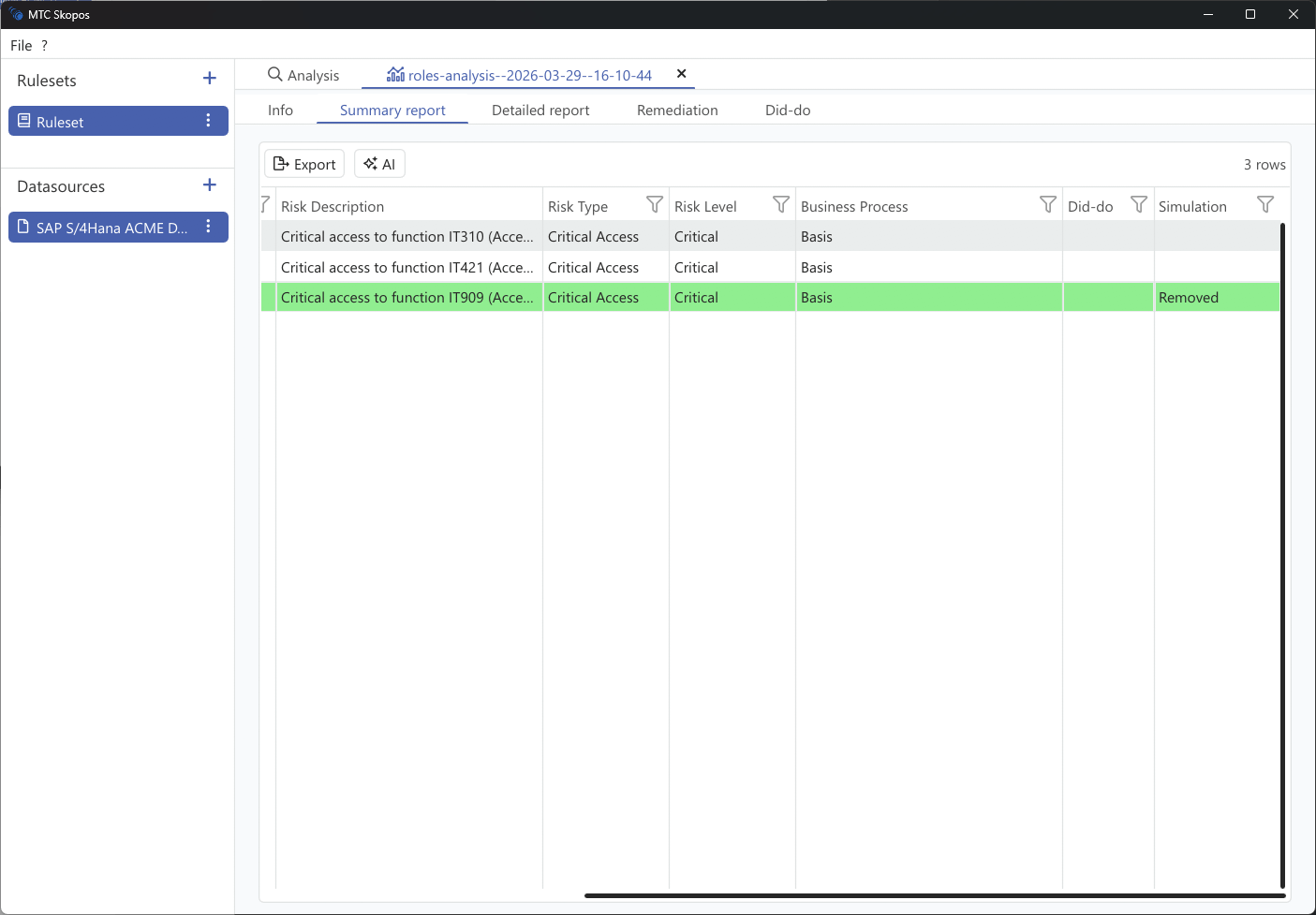
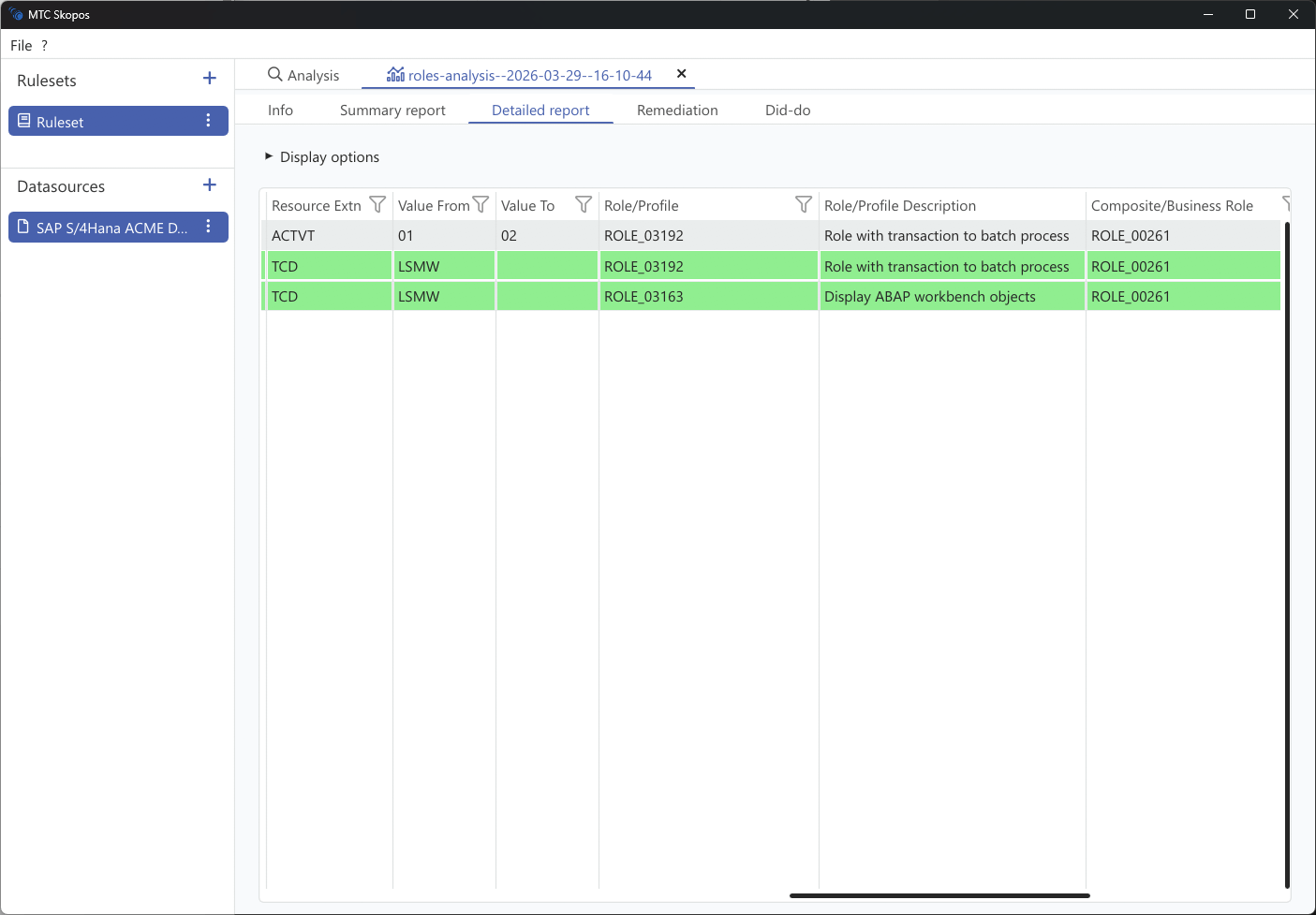
- Click Run analysis
Simulation Tabs
In roles analysis mode:
| Tab | What it simulates |
|---|---|
| Authorizations | Add or remove individual authorizations inside a role |
| Composite Roles | Add or remove single roles inside a composite |
| New Roles | Roles that do not exist yet, built from scratch |
Two more tabs appear when IAM analysis is enabled: Business Role composition and Craft Business Roles. See Business Role Simulation.
Simulating an Authorization Change
Authorization changes are expressed at the same level the analysis works at, so a change can be as narrow as a single field value.
| Field | Meaning |
|---|---|
| Simulation type | Add or Remove |
| Authorization | The authorization the change belongs to |
| Permission Object | The authorization object, for example F_BKPF_BUK |
| Permission Field | The field within the object, for example ACTVT |
| Value from / Value to | The value or value range |
| Target roles | The roles the change applies to |
To remove, the permission object is enough. To add, the authorization, object, field and a starting value are all required, because a partial definition cannot be evaluated.
This is what makes it possible to test narrowing an authorization rather than deleting access outright. Restricting ACTVT to display values often resolves a conflict while leaving the user able to do their job, and simulating it first shows whether that is true before anyone touches a role.
Roles Mode or Users Mode
Roles mode answers whether a conflict is built into the role. Users mode answers whether a person has one right now. A conflict visible in roles mode will keep reappearing through provisioning until the role itself is corrected, so fixing role design is usually the more durable change. See Scoping Your Analysis.