
A remote connection reads tables straight from a live SAP system over RFC, so there are no files to export and no extract to keep in sync. It is the fastest way to work when you have RFC access. Where you do not, or where security policy forbids a direct connection from a workstation, use SAP File Import instead.
Prerequisite: the RFC SDK
RFC connectivity depends on the SAP NetWeaver RFC SDK, which SAP licenses and MTC Skopos cannot redistribute. Download it from the SAP Support Portal and make its libraries available on the library path.
Without it, connection attempts fail with Cannot locate sap rfc native library or Unable to open the rfc lib. If that is a blocker in your environment, file import needs no SDK.
Setup
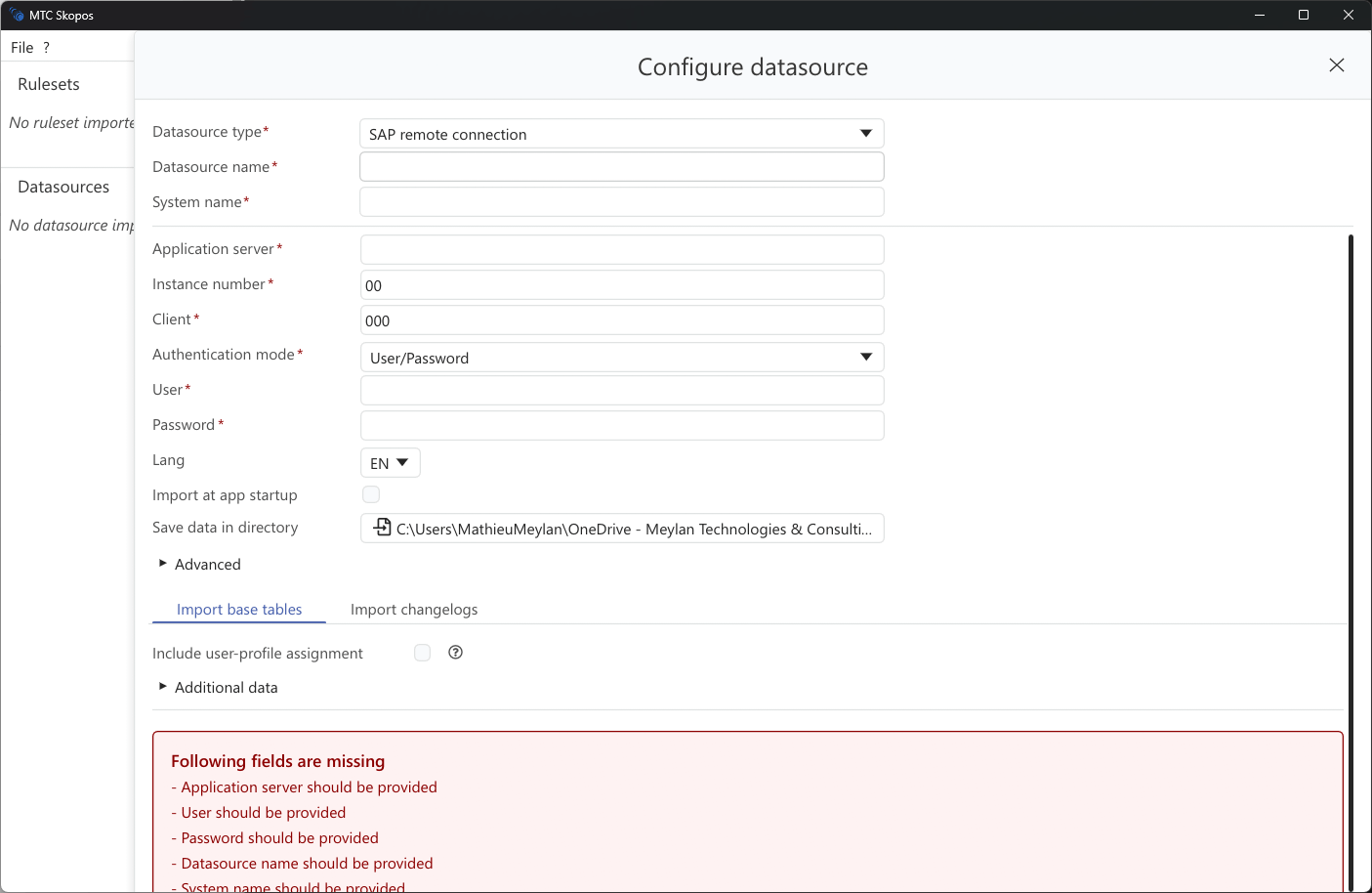
- Click Add → SAP Remote
- Enter the connection parameters:
| Field | Description |
|---|---|
| Name | Display name for this data source. Your ruleset's System values must match it exactly |
| Host | Application server address |
| System Number | Instance number, 00 to 99 |
| Client | Client number, for example 100 |
| Language | Logon language: EN, DE, FR, and so on |
- Select an authentication mode:
- User/Password: standard RFC logon
- SNC: Secure Network Communications, with user and password
- SNC + X.509 Certificate: SNC with certificate-based single sign-on
- For either SNC mode, configure the SNC Library Path, SNC Quality of Protection, and SNC Partner Name
- Click Save, then Load
The connection name matters more than it looks. It is what a ruleset's System column is matched against, case-sensitively, so a name chosen carelessly here is the usual cause of an analysis that finds nothing. See Loading a Ruleset.
Required SAP authorizations
The RFC user needs read-only access. Nothing MTC Skopos does writes to your SAP system.
| Access | Purpose |
|---|---|
Read on AGR_* tables | Role definitions, authorizations, composite structure, assignments |
Read on USR* tables | User master data |
Read on UST* tables | Directly assigned profile analysis |
Read on CDHDR and CDPOS | Did-Do analysis |
| Read on usage statistics tables | Execution counts and dates |
| Execute on the RFC-enabled function modules | Reading table data at all |
Granting only the AGR_* tables produces a working but limited setup: roles analysis works, users analysis needs AGR_USERS, and profile-granted access stays invisible without the UST* tables.
Language and descriptions
The logon language decides which language role and transaction descriptions come back in. Risk detection is unaffected, since it works on technical names, but reports circulated to business reviewers read better in their language. Where reviewers span languages, a second connection to the same system with a different logon language is a legitimate way to produce both.
Refreshing
Unload and Load re-reads from the system. Each load records a checksum and row count per table in the analysis log, so a result stays tied to a specific read rather than to the connection in general. See Managing Data Sources.