
How to Restrict G/L Account Access in SAP S/4HANA
G/L account authorization in SAP controls which users can display, post to, or change line items on specific general ledger accounts. It works through authorization groups (BRGRU) assigned to G/L account master records and enforced via authorization objects F_BKPF_BES and F_BKPF_BLA. Use it to restrict access to sensitive accounts like payroll, treasury, and intercompany settlements.
Not every accountant should see every G/L account. Payroll postings, treasury transactions, executive compensation, intercompany settlements - these contain sensitive financial data that needs to be restricted to the right people.
SAP provides a built-in mechanism for this: authorization groups assigned to G/L accounts, enforced through authorization objects F_BKPF_BES and F_BKPF_BLA. When configured correctly, it controls who can display, post to, or change line items on protected accounts across all major FI transactions.
This guide covers the full configuration, from enabling the field to testing and audit readiness. If you're also working on SoD conflicts in SAP or building an SoD ruleset for S/4HANA, G/L account authorization fits directly into that effort.
Understanding the Two Authorization Objects
These two authorization objects sound similar but do very different things, and they get confused constantly:
| Auth. Object | Description | What It Checks |
|---|---|---|
| F_BKPF_BES | Account Authorization for G/L Accounts | The authorization group (BEGRU) assigned to the G/L account master record in SKB1 |
| F_BKPF_BLA | Authorization for Document Types | The authorization group assigned to the document type (configured in OBA7) |
F_BKPF_BES is the one you want for account-level restrictions. It controls whether a user can see or post to a specific G/L account. F_BKPF_BLA adds document type-level restrictions on top - useful as a second layer, but not a substitute.
Both objects contain the same two fields:
- ACTVT (Activity): 01 = Create, 02 = Change, 03 = Display
- BRGRU (Authorization Group): The authorization group value(s) the user is permitted to access
How It Works
The logic is straightforward:
- You assign an authorization group (a 4-character code) to sensitive G/L accounts in the master record
- When a user runs a display or posting transaction, SAP checks F_BKPF_BES against the account's authorization group
- If the user's role doesn't contain a matching BRGRU value, the system blocks access - line items are suppressed from display, and postings are rejected
Watch out for this: SAP only performs the check when the authorization group field is populated. Accounts with a blank authorization group are accessible to anyone with basic transaction access, regardless of F_BKPF_BES configuration. This is by design - you only need to tag the accounts that require protection.
This applies across all major G/L transactions: line item display (FAGLL03H, FAGLL03, FBL3N, FB03, FAGLB03), posting transactions (FB01, FB50, FB60, FB70, F-02, F-22, and the 100+ transactions calling program SAPMF05A), and related reports.
Step 1: Enable the Authorization Group Field (OBD4)
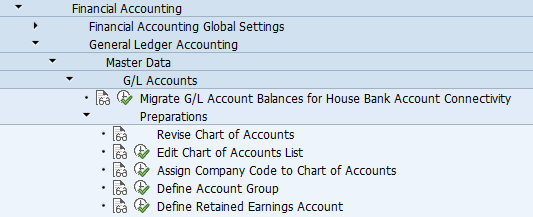
Transaction: OBD4 SPRO Path: Financial Accounting > General Ledger Accounting > Master Data > G/L Accounts > Preparations > Define Account Group
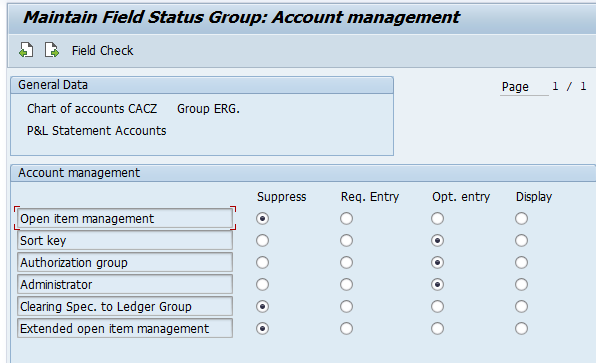
The authorization group field in the G/L account master record is controlled by field status settings on the account group. If this field is suppressed (hidden), you won't be able to assign authorization groups to accounts - and this is the most common reason the control doesn't work.
Procedure:
- Open transaction OBD4 (or navigate via SPRO)
- Select the relevant account group and open its field status settings
- Navigate to the Account Management section
- Set the Authorization Group field to Optional (recommended) or Required
- Save and repeat for all account groups containing sensitive accounts
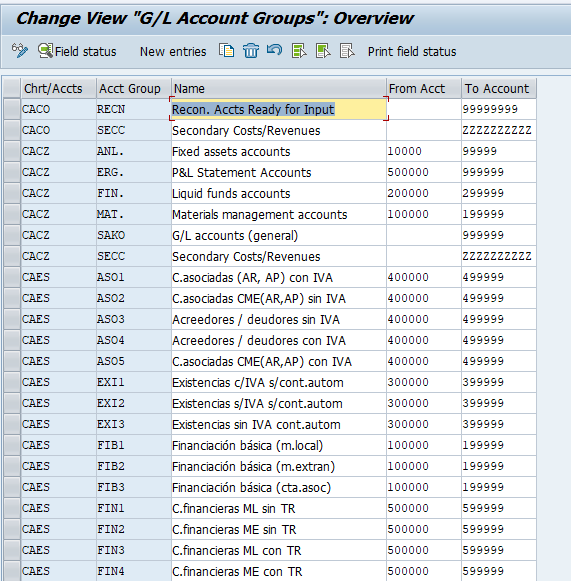
Which account groups? Depending on your chart of accounts, you may need to enable this for:
- Reconciliation accounts (AP/AR) - vendor/customer reconciliation
- Income statement accounts - payroll expenses, executive compensation
- Liquid funds accounts - bank and treasury accounts
- General G/L accounts - other balance sheet accounts needing protection
Tip: Optional is the recommended field status setting. Not every account in the group may need an authorization group, and Required would force a value on all accounts.
Step 2: Assign Authorization Groups to G/L Accounts (FS00)
Transaction: FS00 (Central) or FSS0 (Company Code level)
With the field now visible, you can tag individual G/L accounts with authorization group values.
Procedure:
- Open FS00, enter the G/L account number and company code
- Switch to change mode
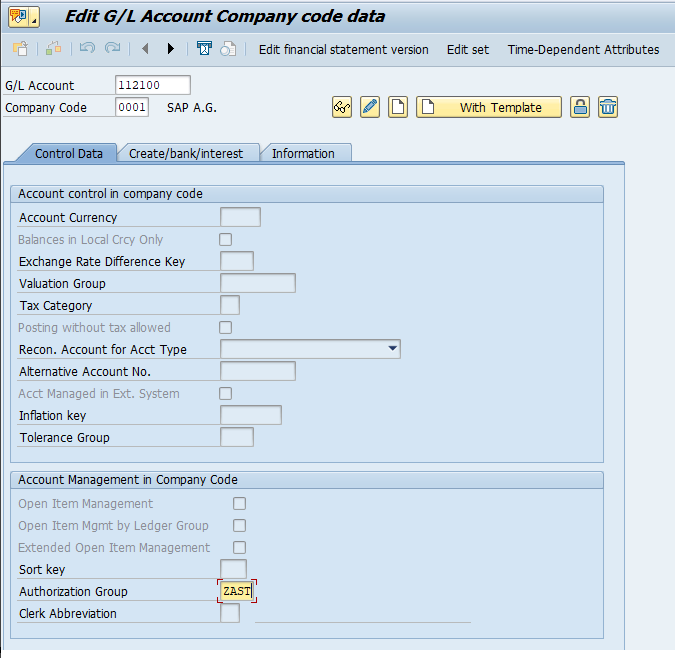
- Navigate to the company code data section - the Authorization Group field should now be visible
- Enter the authorization group value (e.g.,
ZHR1) - Save the master record
The authorization group is a free-text 4-character value stored in table SKB1, field BEGRU, at the company code level.
Recommended Authorization Group Values
| Auth. Group | Description | Typical Use Case |
|---|---|---|
ZHR1 | Payroll Accounts | Salary, wages, bonus expense, payroll clearing accounts |
ZFIN | Treasury Accounts | Bank accounts, investment accounts, cash pool accounts |
ZEXE | Executive Compensation | C-suite compensation, equity awards, deferred comp accounts |
ZICR | Intercompany Accounts | Intercompany receivables, payables, settlement accounts |
Naming convention: Use a Z or Y prefix for custom values to distinguish them from SAP-delivered values and prevent conflicts during upgrades.
Before starting configuration, create a mapping matrix of sensitive G/L accounts, the authorization group to assign, and the user roles that should (or should not) have access. This matrix serves as both a configuration guide and audit evidence.
Step 3: Configure Authorization Objects in User Roles (PFCG)
Transaction: PFCG (Role Maintenance)
Now wire up the roles so users get exactly the access they need.
Procedure:
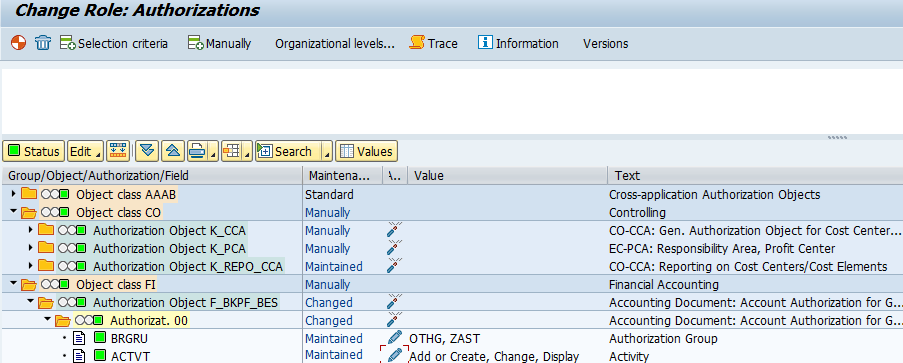
- Open the relevant role in PFCG and go to the Authorizations tab
- Locate F_BKPF_BES in the authorization tree (if missing, add it manually or propagate via SU24)
- Set the ACTVT field:
03(Display) for display-only roles01(Create) and02(Change) for roles that allow posting
- Set the BRGRU field to the specific authorization group values the user needs. Do not use
*unless the user genuinely requires unrestricted access - Optionally configure F_BKPF_BLA for document type restrictions
- Generate the authorization profile and run user comparison
When a G/L account has an authorization group assigned and the user's role doesn't contain F_BKPF_BES with a matching BRGRU value, the system blocks access. Line items are suppressed from display output, and posting transactions reject the entry with an authorization error.
Step 4: Verify the SU24 Check Configuration
Transaction: SU24 (Maintain Authorization Object Check for Transaction)
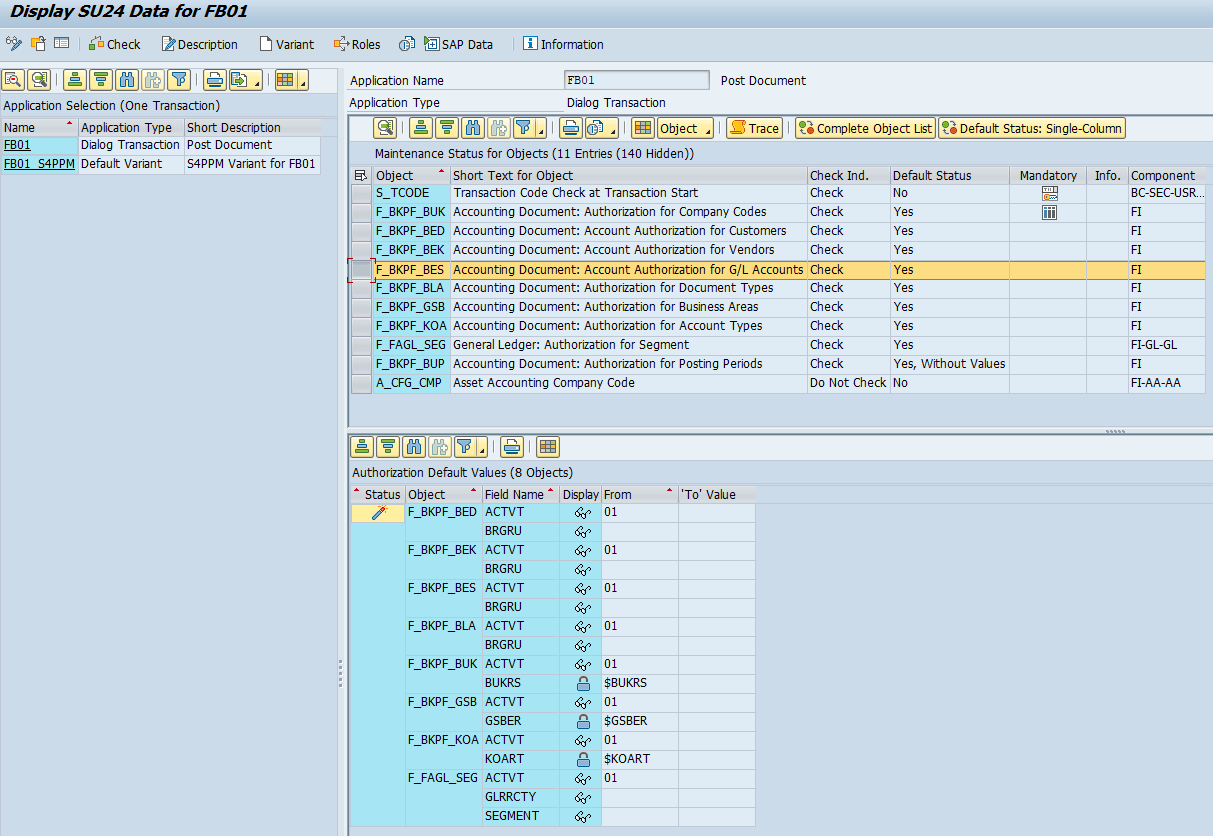
This is the step people forget - and it's the one that makes or breaks the entire control. For the authorization check to fire, F_BKPF_BES must be listed as a checked authorization object for each relevant transaction in SU24. If it's missing or set to "Do Not Check," the system silently skips the restriction regardless of your role configuration.
Procedure:
- Open SU24 and enter each relevant transaction code:
- Display: FAGLL03H, FAGLL03, FBL3N, FB03, FAGLB03
- Posting: FB01, FB50, FB60, FB70, and other transactions using program SAPMF05A
- Find F_BKPF_BES in the list of authorization objects
- Verify the Check Indicator shows "Check" (green). If it shows "Do Not Check" or the object is missing, fix it
- Repeat for F_BKPF_BLA if using document type restrictions
- Save and transport (workbench transport)
- Run SU25 if needed to propagate changes to existing roles
Testing and Validation
A control that isn't tested is a control that doesn't work. Here are the scenarios to validate:
| # | Scenario | Expected Result |
|---|---|---|
| 1 | User with BRGRU=* runs G/L line item display | All line items visible |
| 2 | User with BRGRU=ZFIN views a ZHR1-protected account | Line items not displayed |
| 3 | User with BRGRU=ZHR1 views a ZHR1-protected account | Line items displayed |
| 4 | User with no F_BKPF_BES views a protected account | Line items not displayed |
| 5 | User views account without an authorization group | Line items visible (no check triggered) |
| 6 | User with BRGRU=ZHR1 and ZFIN views accounts in both groups | Both sets visible |
| 7 | User with BRGRU=ZFIN posts to a ZHR1 account via FB01/FB50 | Posting rejected |
| 8 | User with BRGRU=ZHR1 posts to a ZHR1 account via FB01 | Posting successful |
Debugging with SU53
When a user hits a restriction, run SU53 immediately to capture the failed authorization check. It shows the authorization object checked (should be F_BKPF_BES), the BRGRU value required, and the values currently in the user's buffer.
Detailed Tracing with STAUTHTRACE
For deeper analysis:
- Activate the trace for the specific user in STAUTHTRACE
- Have the user execute the transaction
- Deactivate the trace and filter results for F_BKPF_BES
- Check the return code: 0 = pass, 4 or 12 = fail
If F_BKPF_BES doesn't appear in the trace at all, the most likely causes are: (1) SU24 isn't configured to check this object for that transaction, or (2) the G/L account has no authorization group assigned.
Audit and Compliance Considerations
Auditors look at this control closely. These are the findings that come up most often:
| Finding | Risk | Remediation |
|---|---|---|
BRGRU = * in production roles | Users can view/post to any account regardless of sensitivity | Replace * with specific authorization group values |
| F_BKPF_BES not checked in SU24 | Authorization control completely bypassed | Enable check in SU24 for all relevant transactions |
| Sensitive accounts missing auth. group in SKB1 | No restriction even with proper role config | Assign authorization groups to all sensitive accounts |
| Auth. group field suppressed in OBD4 | Cannot assign auth. groups to accounts in that group | Set field to Optional in OBD4 |
| F_BKPF_BES confused with F_BKPF_BLA | Wrong object checked; control doesn't function | Verify correct object is used for account vs. document type |
Segregation of Duties
This control has its own SoD angle:
- Configuration vs. usage: Users who can modify G/L master data (FS00) and account group field status (OBD4) should not also configure security roles (PFCG). Otherwise, someone could remove the authorization group from an account and grant themselves access simultaneously. This segregation of duties conflict belongs in your SoD matrix.
- Cross-module visibility: Payroll accountants shouldn't see treasury accounts and vice versa. Authorization groups enable this separation when properly enforced.
- Change management: Changes to authorization groups in SKB1-BEGRU should be tracked and reviewed. Use table change logs or report S_ALR_87012308 to monitor modifications.
Ongoing Monitoring
- Quarterly SKB1 extraction: Pull the BEGRU field for all sensitive accounts and compare against your mapping matrix
- Role review via SUIM or AGR_1251: Extract F_BKPF_BES BRGRU values from all production roles and verify no unauthorized wildcard access exists
- User access certification: Include F_BKPF_BES in your periodic access review process
- SU24 change monitoring: Watch for unauthorized deactivation of authorization checks on relevant transactions
Rolling out the control on a live system
Configuring F_BKPF_BES on a fresh sandbox is easy. Switching it on across a production landscape that has run for years with BRGRU = * everywhere is where projects go wrong. The moment the check starts firing, any user whose roles do not carry the right authorization group loses access to the protected accounts, and you usually find out exactly who during period close.
Sequence the rollout so nobody loses access in a gap:
-
Inventory actual usage before you tag anything. Pull who currently posts to and displays the accounts you intend to protect. Posting history lives in the FI document tables (BKPF/BSEG, keyed by the entering user); line-item reports such as FAGLL03H show the same activity by account. This tells you which users genuinely need each authorization group instead of guessing from role names.
-
Pre-provision the matching BRGRU values to exactly those users' roles before the check goes live in SU24. This single step is the difference between a clean cutover and a flood of SU53 tickets.
-
Remove the wildcards last, not first. Strip
BRGRU = *only after the specific values are in place and verified. Reverse the order and every protected account goes dark for legitimate users in the window between. -
Verify with STAUTHTRACE on a sample before and after cutover: return code 0 on the accounts a user should reach, 4 or 12 on the ones they should not.
The principle underneath is substitution. A user who has only ever posted to treasury accounts gets BRGRU = ZFIN, not the wildcard they held before. You are not removing their access, you are scoping it to what they actually use.
MTC Skopos supports this directly. It extracts every role's F_BKPF_BES BRGRU values, cross-references them against the authorization groups actually assigned in SKB1, and produces the per-user worklist: which wildcards to replace, which values to add, and which users reach accounts they have no business-justified reason to touch. You simulate the scoped end state before you transport, so the cutover is a non-event. See Advanced Remediation for how Skopos generates and orders the change steps.
Quick Reference Checklist
- Authorization Group field enabled in OBD4 for relevant account groups
- Sensitive G/L accounts tagged with authorization group values in FS00
- F_BKPF_BES configured in PFCG roles with specific BRGRU values (no wildcards)
- F_BKPF_BES check enabled in SU24 for all display and posting transactions
- Test scenarios validated in development/test system
- Mapping matrix documented for audit evidence
- Ongoing monitoring process established
Frequently Asked Questions
What is F_BKPF_BES in SAP?
F_BKPF_BES is an SAP authorization object that controls access to accounting documents based on the authorization group (BEGRU) assigned to the G/L account master record in table SKB1. It restricts who can display, post to, or change line items on protected G/L accounts across transactions like FAGLL03H, FBL3N, FB01, FB50, and all other posting transactions using program SAPMF05A.
What is the difference between F_BKPF_BES and F_BKPF_BLA?
F_BKPF_BES checks the authorization group assigned to the G/L account master data (SKB1-BEGRU) - use it to restrict access by account. F_BKPF_BLA checks the authorization group assigned to the document type (configured in OBA7) - use it to restrict access by document type. For account-level restrictions on G/L display and posting transactions, F_BKPF_BES is the one you need. F_BKPF_BLA is a second layer on top.
Why does F_BKPF_BES not work for some G/L accounts?
The three most common causes are:
- Authorization group field suppressed in OBD4 - the field isn't visible in FS00, so no value can be assigned
- No authorization group assigned - accounts with a blank BEGRU field in SKB1 skip the check entirely
- SU24 not configured - F_BKPF_BES is set to "Do Not Check" or missing for the transaction in SU24
Use STAUTHTRACE to confirm whether the check fires. If F_BKPF_BES doesn't appear in the trace, the issue is in SU24 or the account master data.
What happens when a G/L account has no authorization group?
SAP does not perform an F_BKPF_BES check for accounts where the authorization group field (SKB1-BEGRU) is blank. Any user with basic transaction access can display line items or post to the account, regardless of their F_BKPF_BES role configuration. Only accounts with an explicitly assigned authorization group trigger the check.
How do I assign an authorization group to a G/L account?
Use transaction FS00 to open the G/L account master record, navigate to company code data, and enter a 4-character value (e.g., ZHR1) in the Authorization Group field. The field must first be enabled in OBD4 field status settings - set it to Optional or Required for the relevant account group.
How MTC Skopos Helps
MTC Skopos automatically checks F_BKPF_BES and F_BKPF_BLA configurations across all users and roles. Our risk analysis flags wildcard access, missing authorization groups, and SU24 gaps before auditors do. It is part of full SAP access risk analysis across every user and role.
Combined with our SoD ruleset, you see who can access sensitive accounts and whether that access conflicts with other privileges. AI-powered remediation then helps you resolve the findings.